
Summary
Docker is a tool to create containers of software and manage them. Containers are standardized, isolated software units that yield the same behavior over different machines when managed by the docker daemon.
This is especially useful when working in different environments and improves code consistency, as each container includes the source code and the runtime environment the app runs on. Containers ( or rather their images ) can easily be shared and reproduced by different members of a team.
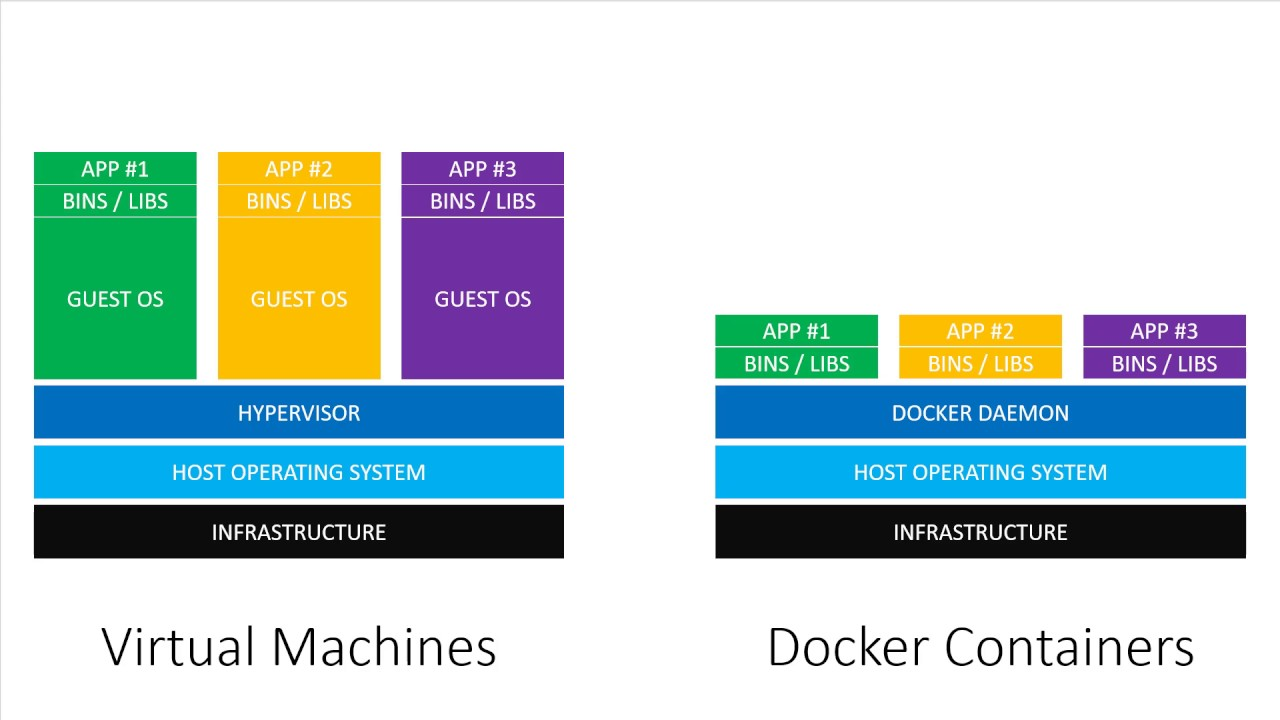
Compared to Virtual Machines, containers are more efficient as they require no separate operating system to run on, but are managed by docker itself.
Installation
Windows and Mac require additional setup to run Docker Desktop & the Docker tools, while the ability to containerize is already built into Linux.
Linux - Ubuntu
Install Docker Engine on Ubuntu
Installation scripts updated on 03.07.2021
# Run the following commands
# Get rid of older versions
Sudo apt-get remove docker docker-engine docker.io containerd runc

# Add libs and the docker repos
sudo apt-get update
sudo apt-get install apt-transport-https ca-certificates curl gnupg lsb-release

# Add the official docker keyring
sudo mkdir -p /etc/apt/keyrings
curl -fsSL https://download.docker.com/linux/ubuntu/gpg | sudo gpg --dearmor -o /etc/apt/keyrings/docker.gpg


# Add the repository (stable built)
echo \
  "deb [arch=$(dpkg --print-architecture) signed-by=/etc/apt/keyrings/docker.gpg] https://download.docker.com/linux/ubuntu \
  $(lsb_release -cs) stable" | sudo tee /etc/apt/sources.list.d/docker.list > /dev/null

# Install the docker runtime
sudo apt-get update
sudo apt-get install docker-ce docker-ce-cli containerd.io docker-compose-plugin

# Verify docker is running
sudo docker run hello-world
Setting up Permissions on Ubuntu
By default, docker listenes to a UNIX socket that’s available only to the su - user. To give a non-root user permission, use the following.
Make the current user execute docker with root privileges! Be sure that’s what you want
# Execute these two, then restart
sudo groupadd docker
sudo gpasswd -a $USER docker
Mac OS & Windows
MVP Docker Commands
# Get rid of old containers
sudo docker system prune

# Get rid of old images
sudo docker image prune -a

# Get help for a specific docker command
sudo docker [COMMAND] --help

# Start a terminal in a running container
docker exec -it [CONTAINER_ID] sh
Basic Docker Setup
See Docker - Basic Dockerfile See Docker - Basic management commands
Each docker container is based on an image that comes to life using a docker runtime command. Images are like blueprints for a container. Only the container can be interacted with, however,
The most common way to create a new image is to use a pre-built image of a runtime environment and extend it. Docker works with Layers. Each command in the dockerfile adds a new layer to the image and is cached to improve efficiency. The base images can be fetched from Dockerhub
Dockerhub also serves as a registry for custom images. After creating a repository, images can be tagged and then pushed.
docker tag <old-image-name> <repos-name>/<new-image-name>:<new-image-tag>
docker push <repos-name>/<new-image-name>:<new-image-tag>
Utlity Containers
Next to apps, Docker is also capable of executing commands, like on a VM. To do so, a few tweaks are necessary, but the result is very useful to initialize replicable setup scripts.
See Docker - Utility Containers
Share Images
Sharing images can be done by passing on the docker file or the built image over docker hub. For that, one needs to log in there first and create an account. Then, the following commands will come in handy:
# Login with your account
sudo docker login
# docker logout

# Createa clone of a local image to fit the remote
sudo docker tag node-demo:latest <docker-org-name>/<image-name>
sudo docker push <docker-org-name>/<image-name> # <- this will now push
Basic Build and Production Stages
When building apps for productive usage (example w/ vue + nginx), use the following dockerfile setup
# build stage
FROM node:14 as build-stage
WORKDIR /app
COPY package*.json ./
RUN npm install
COPY . .
RUN npm run build

# production stage
FROM nginx as production-stage
COPY --from=build-stage /app/dist /usr/share/nginx/html
EXPOSE 80
CMD ["nginx", "-g", "daemon off;"]
Change the DOCKER_HOST env-variable
When working with a remove docker machine, DOCKER_HOST can be overwritten so commands typed in a local terminal are executed in a remote docker session
export DOCKER_HOST=ssh://<user>@<ip-address>Work with Volumes and Bind Mounts
Volumes add persistency to containers. They are controlled by docker and therefore reusable. There is a way to work with anonymous ones, but named ones give you more control over how and where to store data.
Bind mounts on the other hand bind a physical path on the local machine to one inside of the container. These are handy for development, but should not be used in production
See Docker - Volumes
Cross-container Communication with Networks
Containers have access to the www, but lack access to a local network. This is where docker networks come in handy.
Docker Compose
With docker-compose, managing containers can be done with a single file + two commands to orchesterate one or several containers up and down. Almost everything one can do with standard docker commands can be done by a single docker-compose. yaml file inside the project directory.
Alpine Images
Alpine images are built on top of the Linux Alpine project. They are great to perform building steps or for lean built apps that do not need a whole overhead of libraries.
The Node Image alpine version, for example, can be used like this:
FROM node:14-alpine

# ... more dockerfile commands